How to Fix an Acorn TV Activation Code That Is Not Working
How to Fix an Acorn TV Activation Code That Is Not Working? Start by identifying where the problem occurs and which company manages your subscription. The most useful next step depends on the device, account, and billing route.
What are the common symptoms?
Expired, invalid, or unrecognized activation codes. The behavior may differ between web browsers, mobile apps, and television streaming devices. Note the exact screen message before making changes.
What can cause this issue?
This guide addresses expired, invalid, or unrecognized activation codes. A streaming problem can be caused by account access, the installed app, the device operating system, a temporary network interruption, or a subscription handled by a separate billing provider. Checking each layer in order prevents unnecessary purchases and repeated changes.
Step-by-step troubleshooting
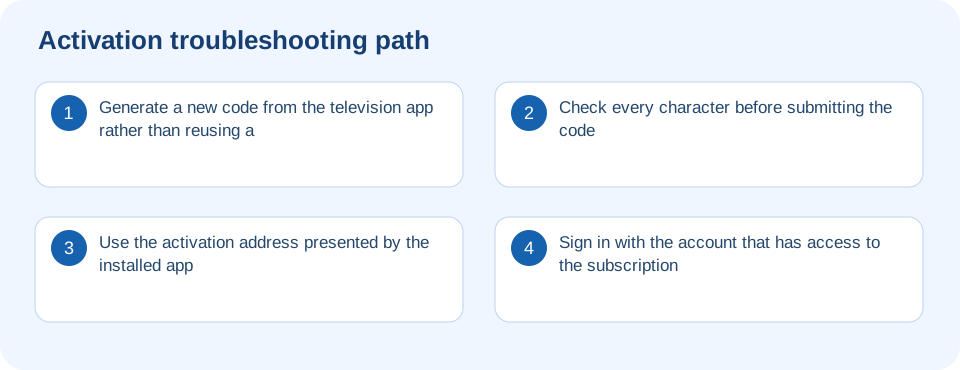
- Generate a new code from the television app rather than reusing an old one.
- Check every character before submitting the code.
- Use the activation address presented by the installed app.
- Sign in with the account that has access to the subscription.
- Close duplicate activation tabs and try once more.
- Restart the app if it still displays the previous code.
How to isolate the cause
First check whether the issue happens on just one device or on every device using the same account. If only one device is affected, prioritize its app, firmware, storage, and network settings. If all devices fail, investigate account status, subscription ownership, and service availability before reinstalling everything.
What to avoid
Do not follow unfamiliar activation links, enter payment details on a website supplied by an unsolicited caller, or buy a second subscription just because a device displays a sign-up screen. If you reinstall an app, make sure you can access the correct account and subscription provider first.
How do I know the problem is fixed?
The activation screen disappears and the account is signed in. Repeat the test after closing and reopening the app so you can confirm that the improvement persists.
Frequently asked questions
Does the same fix work on every device?
Not always. Roku, Fire TV, Apple TV, smart TVs, phones, and browsers expose different settings. Use the device-specific instructions in this guide and avoid options that your device does not provide.
Should I cancel or repurchase my subscription?
No, not as an initial troubleshooting step. Identify the billing provider and verify the plan status first. Duplicate subscriptions can create additional charges without resolving a sign-in problem.
What information is useful when requesting assistance?
Have the device model, operating system, app version, title being played, and exact error wording ready. Do not include passwords, security codes, or complete payment credentials.